
Fusion Mouse1.0 - Get APK
You'll be able to download in few seconds.
Publisher Description
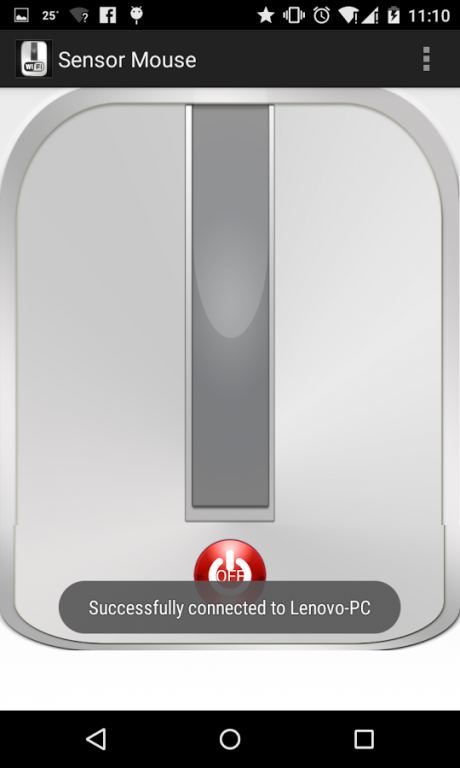
Fusion Mouse transforms your mobile phone into Wireless Mouse for your computer! Yes using this is as easy as playing a game by tilting mobile phone.
Quite a handy tool for those who need to swiftly control the presentation. Developed specifically with precise control & ease of use in mind.
Fusion mouse helps you control the mouse pointer by tilting the mobile phone. At the same time you can use on screen buttons to perform actions like selection, drag, scroll & click.
Fusion mouse works over WiFi, there are various ways in which you can let mobile and computer talk to each other.
I have explained the network set up which should merely match commonly available home & office network configuration in the following blog post - http://fusionsenseapps.blogspot.in/
Installation and Usage
----------------------
1. Install the Fusion Mouse android application on the mobile device.
2. Download the Fusion Mouse Server application to your Desktop/Laptop from here: https://www.dropbox.com/sh/ngkgw0sos5o7rgz/AAC-g2yuJ3w3aJTFinkgV1CXa?dl=0
3. Fusion Mouse server requires Java Runtime Environment (JRE) engine 1.6 or higher. Please install the latest Java runtime from - http://www.oracle.com/technetwork/java/javase/downloads/index.html (Chose JRE suitable for your operating system)
4a. Microsoft Windows users: Run the FusionMouseServer.bat (Just launch the bat file)
[You will need to allow program through firewall on windows - read the pop up you receive once you run the bat file. Allow the communication on private and public depending on the network to which your phone is connected]
4b. Mac / Linux users: Launch a terminal and run the FusionMouseServer.sh script.
[run following command in the terminal : sh <>/FusionMouseServer.sh]
4. Run the Fusion Mouse Android Application, Discovery screen will get launched, click on "Start Discovery".
5a. If the network configuration is right, you will see your computer name displayed, click on it.
5b. Discovering computer may fail in some corporate networks, if so - please choose manual connect option. Enter the IP address as shown in the FusionMouseServer console. Click connect.
6. Thats it, you are now connected to the Fusion mouse server. The mouse is now displayed on your phone.
7. Click on the power button, to enables the Fusion mouse, move your hand freely to control the mouse.
8. Sensors are prone to errors, so you may loose track of the pointer, just turn the mouse off & switch it on, cursor will be positioned to the centre of the screen again.
9. Change sensitivity, if you find the pointer to be moving too slow or too fast from menu.
Controls:
---------
1. Left mouse button - Click, Double click.
2. Right mouse button - Click.
3. Centre Mouse Button - Swipe vertically to scroll.
4. Long press Left mouse button (till a heptic feedback) to start block selection.
About Fusion Mouse
The company that develops Fusion Mouse is Fusion Sense. The latest version released by its developer is 1.0.
To install Fusion Mouse on your Android device, just click the green Continue To App button above to start the installation process. The app is listed on our website since 2015-02-17 and was downloaded 0 times. We have already checked if the download link is safe, however for your own protection we recommend that you scan the downloaded app with your antivirus. Your antivirus may detect the Fusion Mouse as malware as malware if the download link to com.fusionsense.fusionmouse is broken.
How to install Fusion Mouse on your Android device:
- Click on the Continue To App button on our website. This will redirect you to Google Play.
- Once the Fusion Mouse is shown in the Google Play listing of your Android device, you can start its download and installation. Tap on the Install button located below the search bar and to the right of the app icon.
- A pop-up window with the permissions required by Fusion Mouse will be shown. Click on Accept to continue the process.
- Fusion Mouse will be downloaded onto your device, displaying a progress. Once the download completes, the installation will start and you'll get a notification after the installation is finished.
Program Details
System requirements
Download information
Pricing
Version History
version 1.0
posted on 2015-02-17
Disclaimer
External Download
We do not host Fusion Mouse on our servers. We did not scan it for viruses, adware, spyware or other type of malware. This app is hosted by Galad and passed their terms and conditions to be listed there. We recommend caution when installing it.
The APK Download link for Fusion Mouse is provided to you by apps112.com without any warranties, representations or guarantees of any kind, so access it at your own risk.
If you have questions regarding this particular app contact the publisher directly. For questions about the functionalities of apps112.com contact us.
